Registration for non-residents on GPH
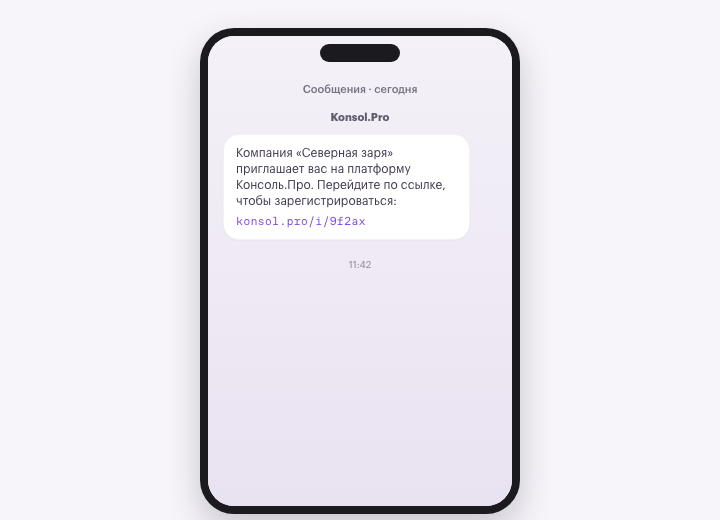
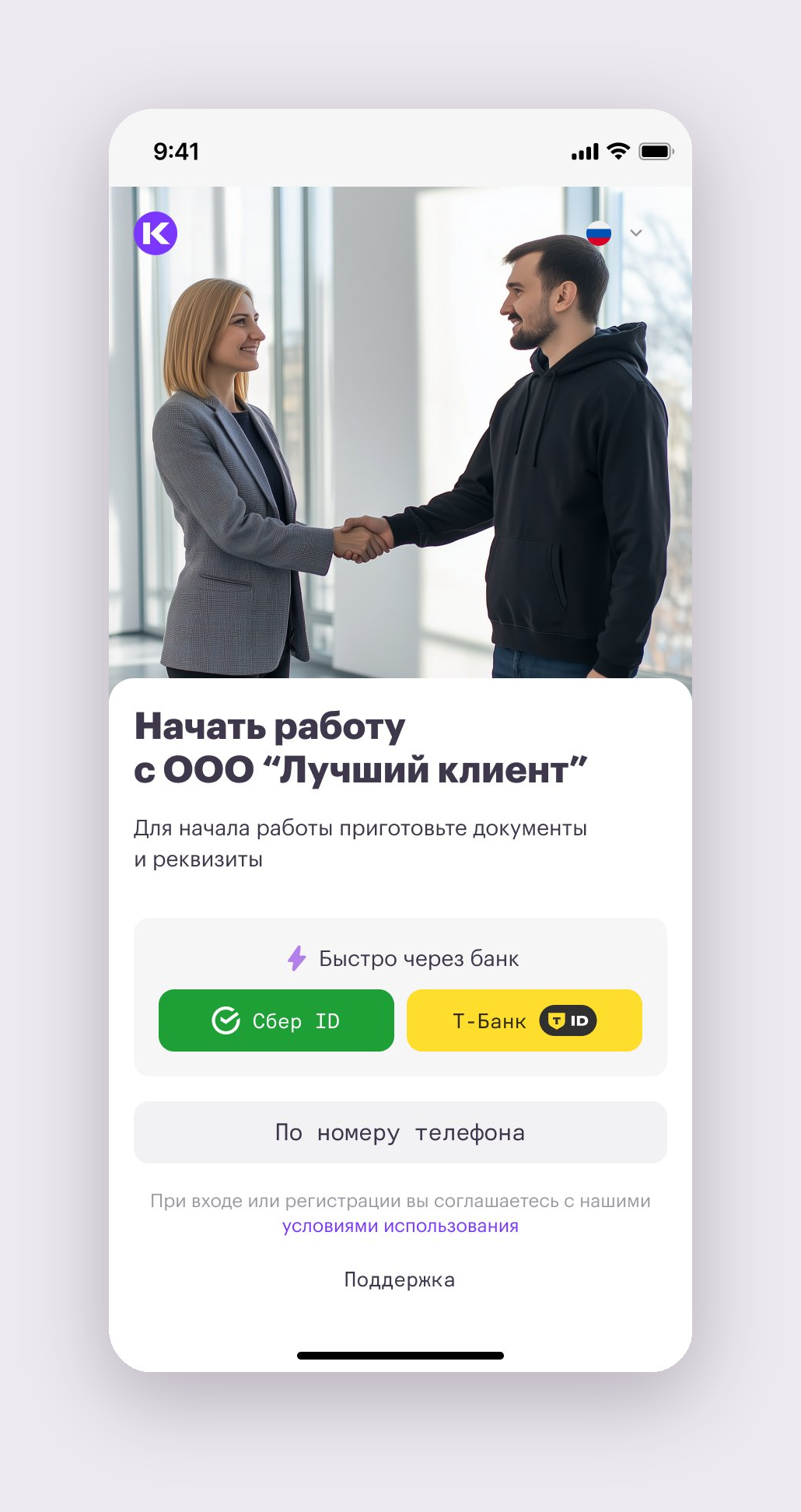
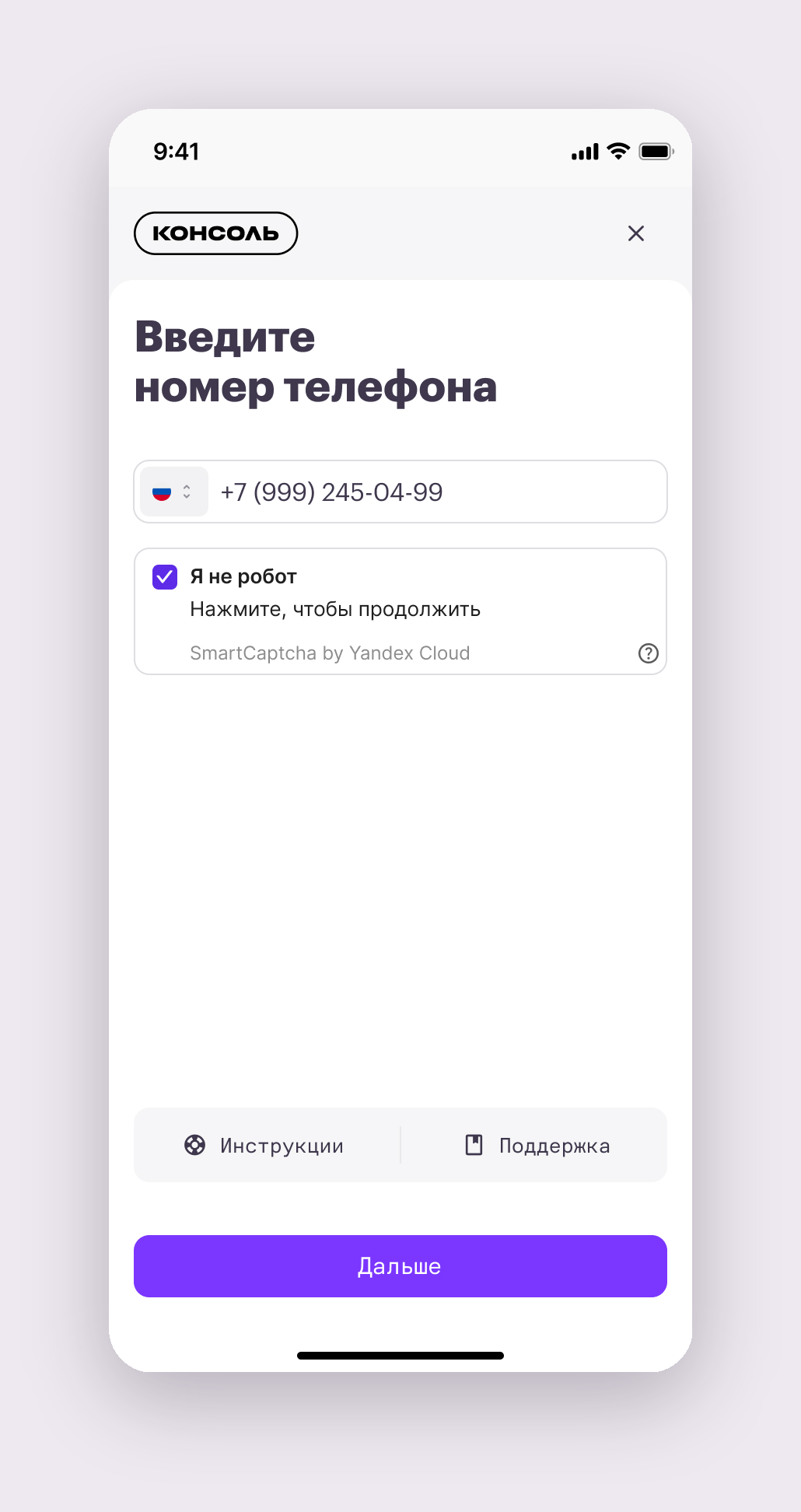
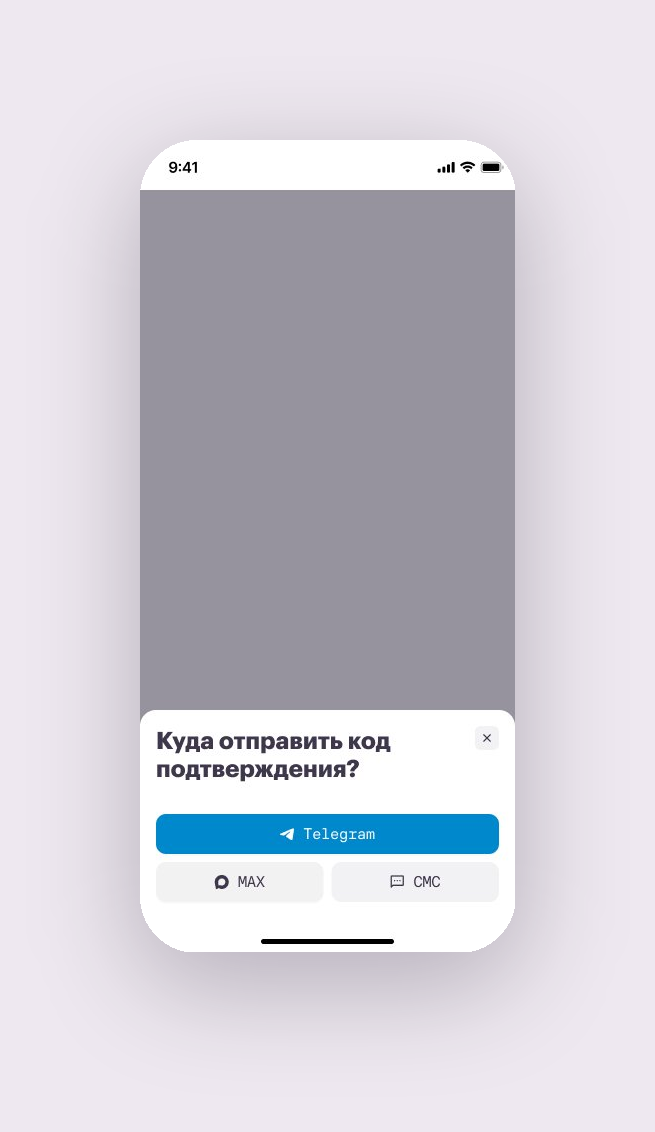
In order to start working through the Console with a company customer as an executor under a GPH contract, it is necessary to go through the registration procedure
I. How to Start Registration
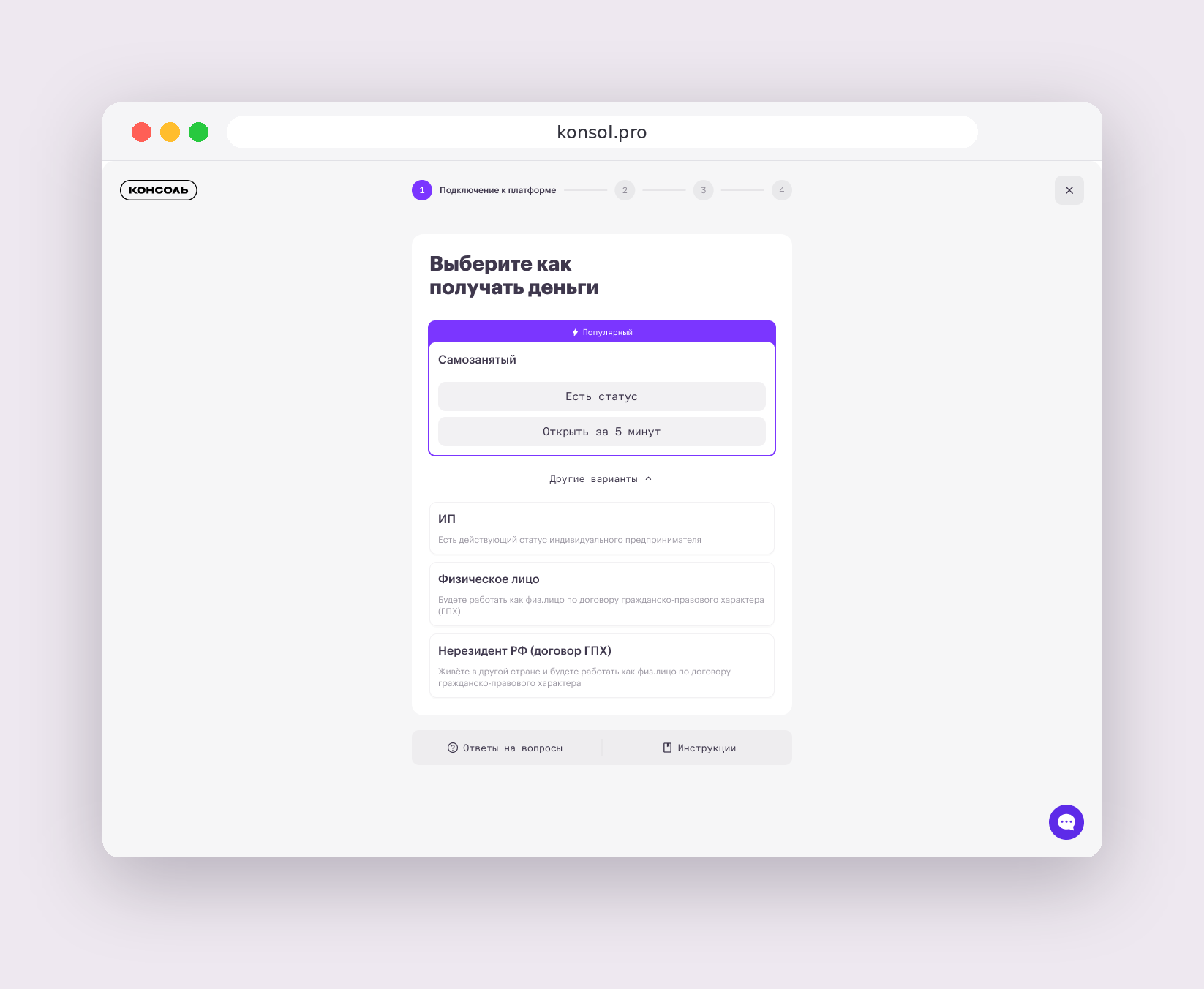
II. Fill In the Form
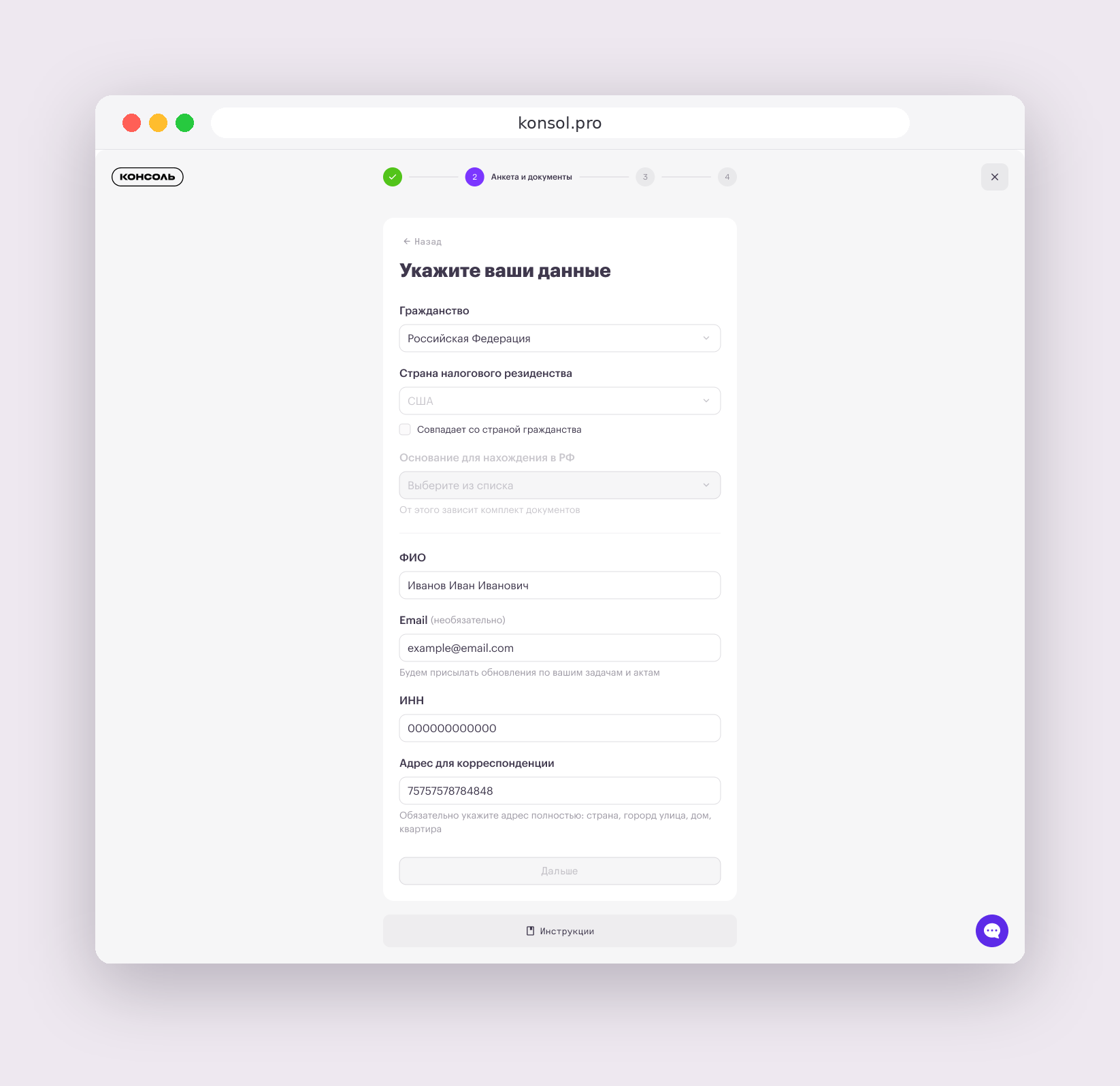
Enter the following information:
- citizenship;
- tax residency;
- first name, last name, and patronymic, if you have one;
- email, if you have one;
- TIN or tax identification number in your country;
- correspondence address in your country.
If your tax residency is the same as your citizenship, select the checkbox.
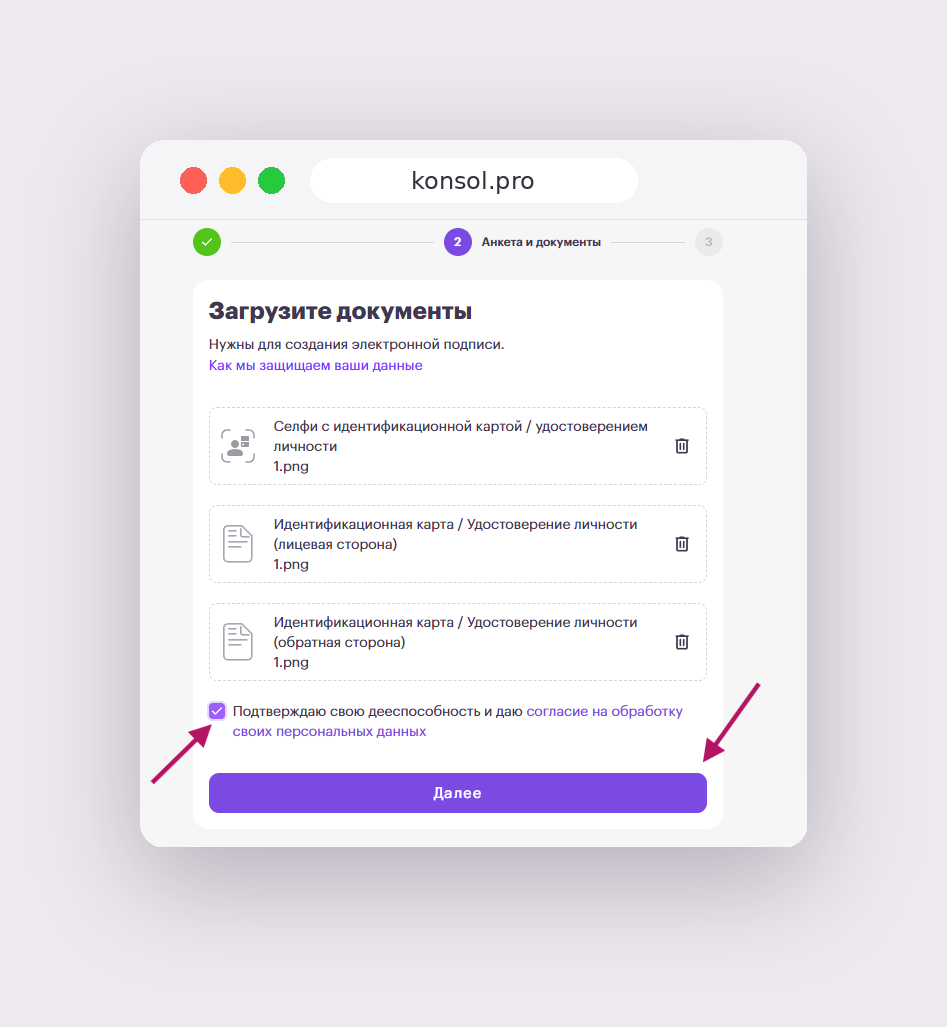
III. Upload Documents
Upload photos or scans of your documents in .jpg, .png, .heic or .pdf format.
After uploading the documents, give your consent to personal data processing.
The Next button will become available after all required fields are filled in and the documents are uploaded.
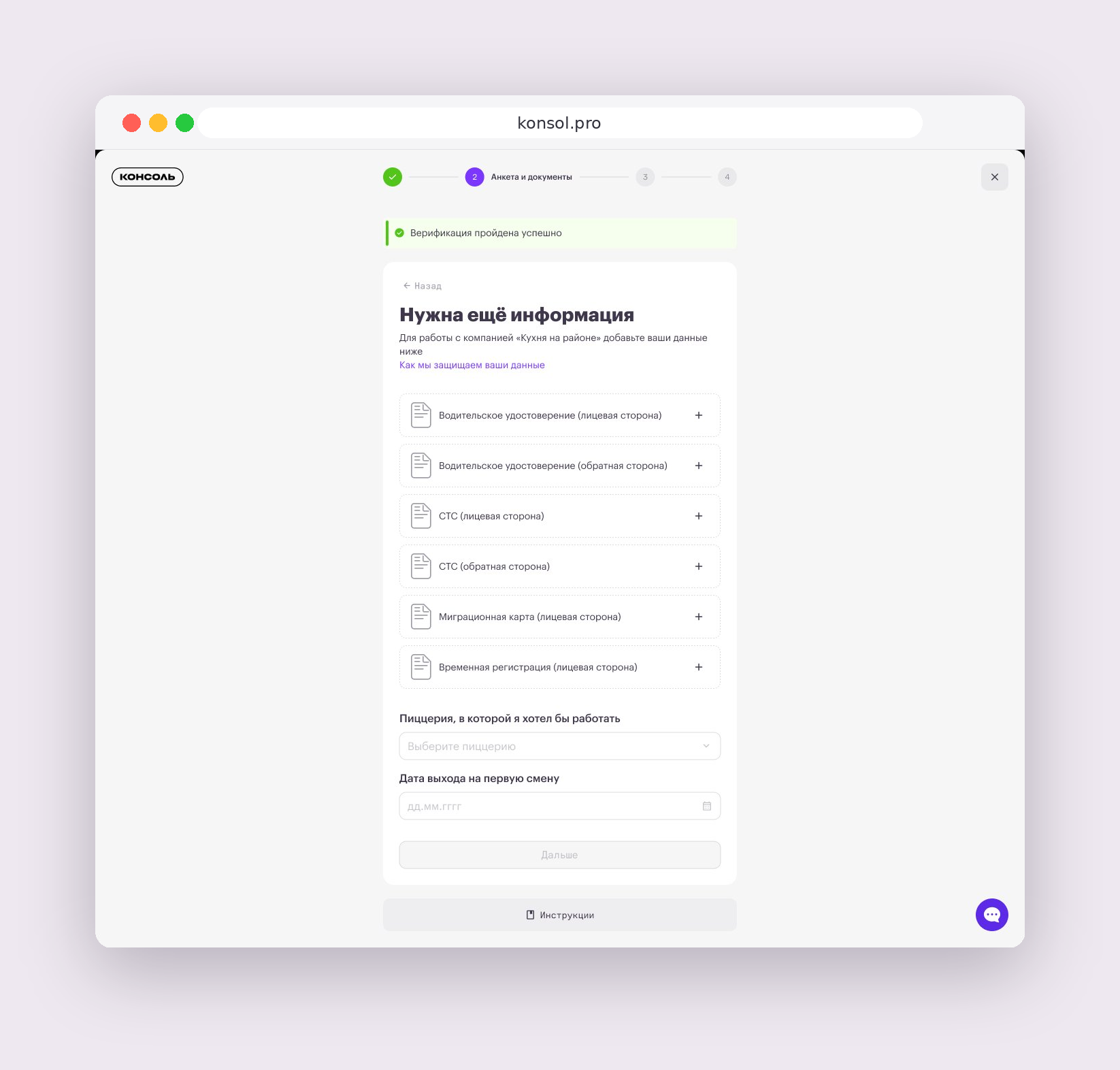
If the customer requires additional documents for the contract, such as a driver’s license, Konsol will ask you to upload them separately.
After uploading additional documents, click Next.
Document Requirements
Photos or scans must be clear, without glare, shadows, or cropped edges.
The document must clearly show:
- full name;
- date of birth;
- document number;
- issuing country;
- expiration date, if stated in the document;
- photo, if the document has one;
- all edges of the page or card.
If the document is not in Russian, a translation may be required. Konsol or support will let you know if it is needed.
IV. Registration Check
After you fill in the form and upload the documents, your data will be sent for verification.
During business hours, verification usually takes up to 15 minutes.
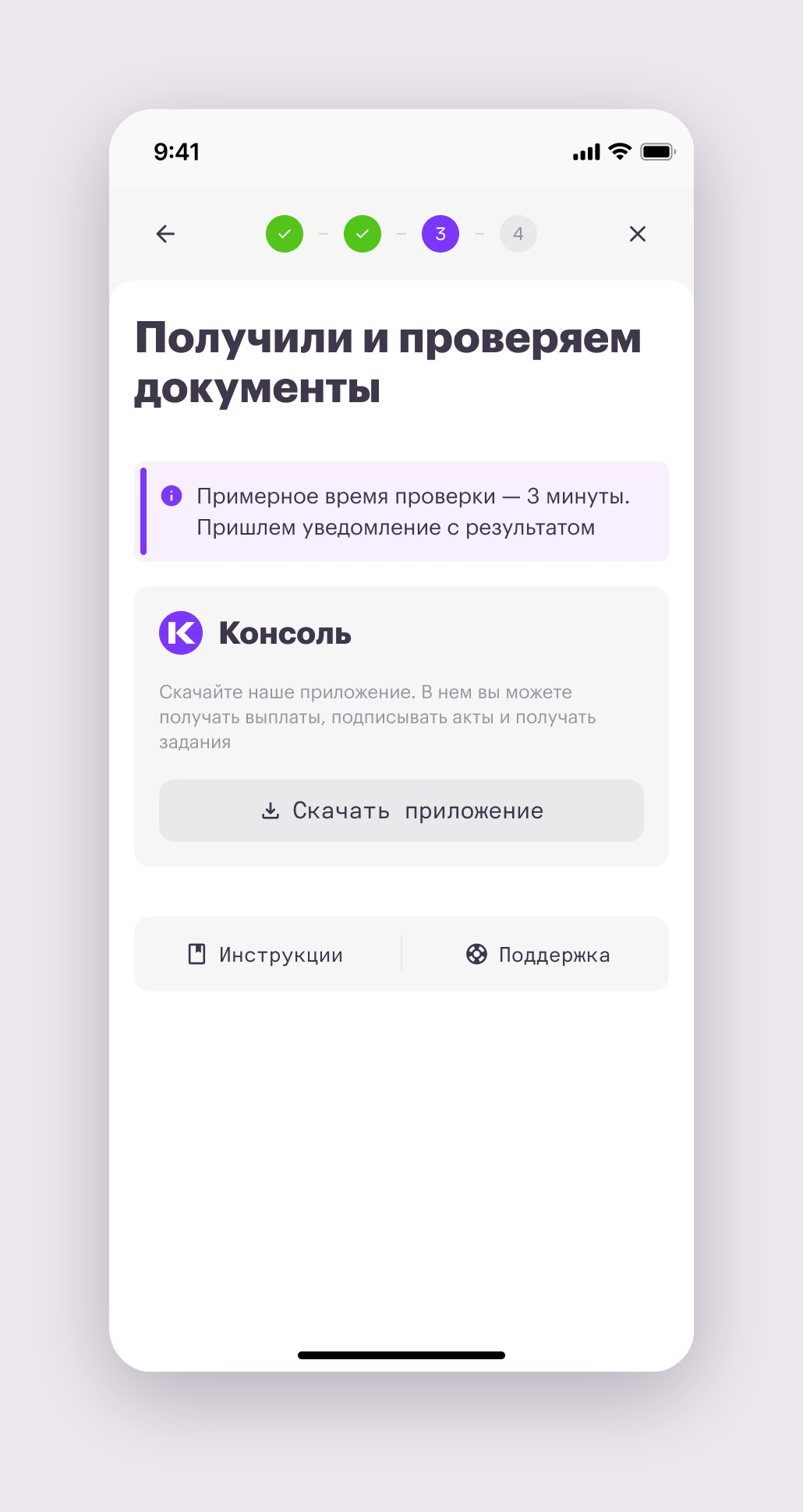
If everything is correct, you will receive an SMS confirming successful registration.
If something is wrong with the documents, we will send you an SMS asking you to contact support on the website or in the app. If needed, we may ask you to send new document photos in the support chat.
The data you provide will be sent for verification, which takes up to 15 minutes during business hours.
V. Create a PIN Code
After your documents are successfully verified, Konsol will ask you to create a PIN code.
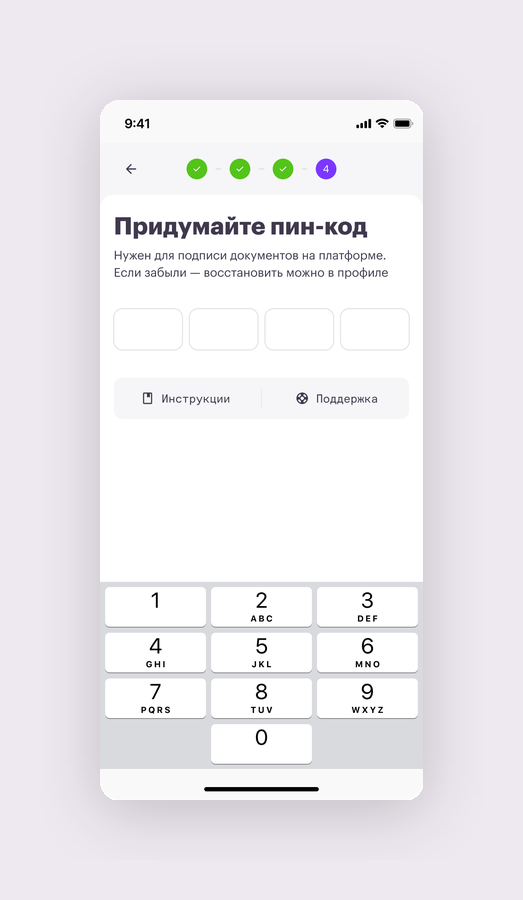
The PIN code is used to sign documents on the platform, such as contracts, acts, and other documents available for signing in Konsol.
Create a PIN code and remember it.
The PIN code cannot consist of four identical digits or digits that go in direct or reverse order.
Examples of PIN codes that will not work:
111112344321
If you forget your PIN code, you can change it in your personal account.
After Successful Registration
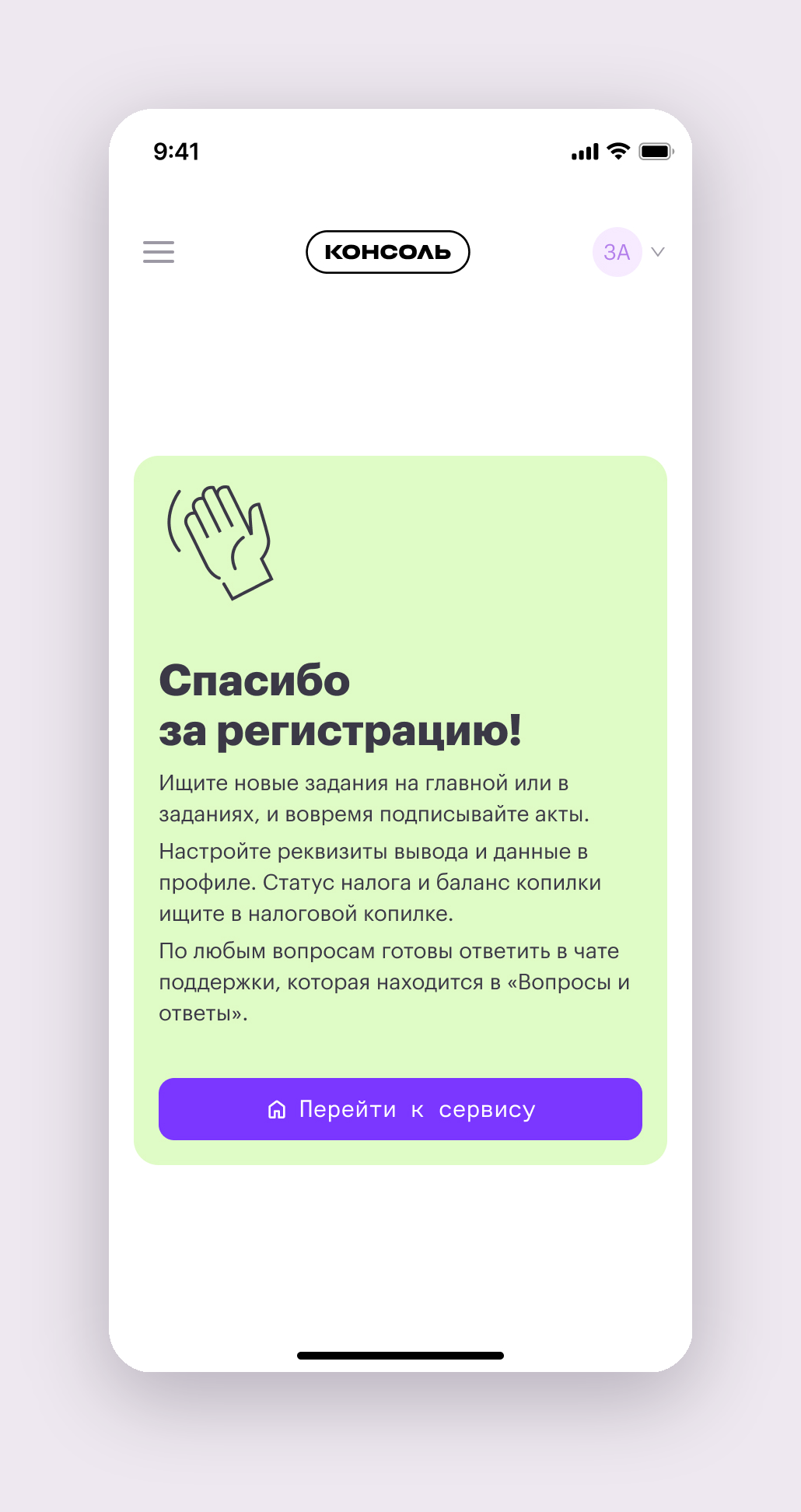
After receiving a message about successful registration, log in to your personal cabinet at https://app.konsol.pro or via our app and sign a contract with the company
Эта статья была полезной?
Расскажите, что улучшить.